 Cheese Wheels Apps
 Markdown
 docs
Mermaid diagrams
Write a diagram as text in a mermaid code block, and it's drawn on the page.
Mermaid turns short text into diagrams. Put it in a code block with the language mermaid:
```mermaid
flowchart LR
  Build --> Test --> Deploy
```
The diagram is drawn on the page and in the editor’s preview, sized to fit its content and the page width.
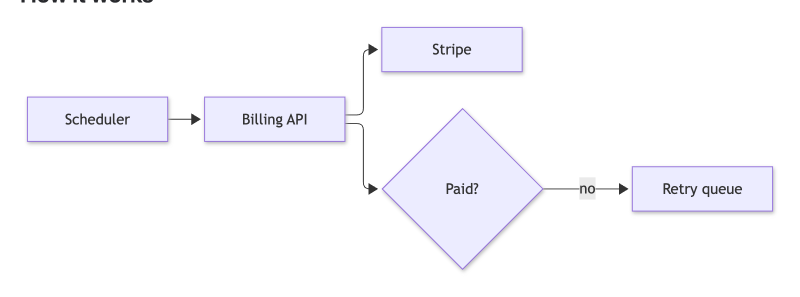
Diagram types
All diagram types of Mermaid work, for example:
flowchart(orgraph) — boxes and arrowssequenceDiagram— messages between services or peopleclassDiagram,erDiagram— classes and database tablesstateDiagram-v2,gantt,pie,journey,gitGraph,mindmap,timeline
See the Mermaid documentation for the syntax of each type.
Dark mode
Diagrams follow Confluence’s light and dark themes.
Errors
If a diagram has a mistake, the macro shows its source with the error message instead. The rest of the Markdown still renders. The editor’s preview shows the same message, so you can fix it before saving.
In PDF and Word export
When you save the macro, the editor also draws each diagram as a picture for export. PDF and Word then show the diagram as an image.
A diagram added without the editor — for example by an AI agent or the REST API — has no picture yet. Export then shows its source as code, with a note. Open the macro and choose Save once, and export includes the diagram.
Good to know
- Diagram labels in Word export are plain text, so they look slightly different from the page, but they stay readable and editable.
- Clicks and links inside diagrams are turned off, for security.