 Cheese Wheels Apps
 Markdown
 docs
Export to PDF and Word
Markdown is included in Confluence's built-in PDF and Word export, as real Confluence content.
Export a page
- Open the page (not in edit mode).
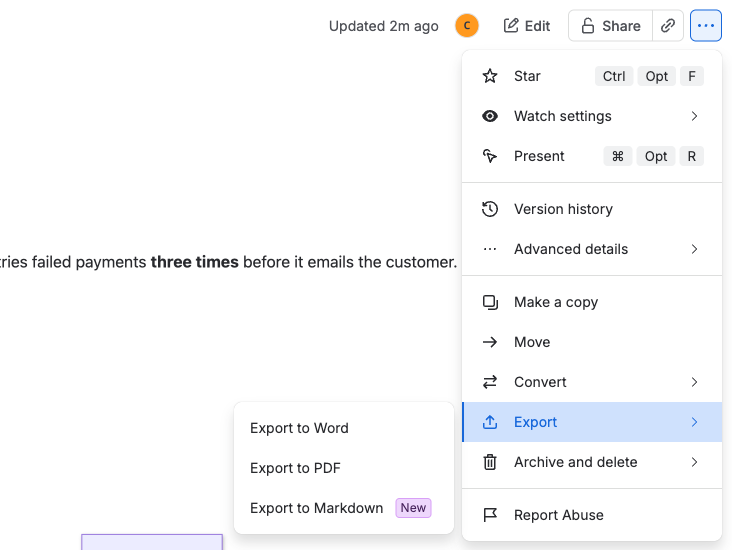
- Choose More actions (•••) in the top-right corner.
- Choose Export, then Export to PDF or Export to Word.
For export, the app turns your Markdown into native Confluence content: headings, paragraphs, lists, tables, code blocks and images. The export looks like the rest of your page, and text in Word stays editable.
Diagrams
Mermaid diagrams are exported as images. The picture is drawn by the editor when the macro is saved; see Mermaid diagrams for diagrams added by AI agents or scripts.
Good to know
- Task lists export as checkboxes in PDF. Word shows them as ☐ and ☑ characters.
- Quotes and lists inside quotes are simplified where Confluence’s export format allows less nesting than Markdown. The text is all there.
- Links on code keep the link; the code style is dropped, as Confluence’s export can’t combine the two.
- Images from websites and from the page’s attachments are included.
- Markdown export (Export to Markdown) leaves the macro out. Confluence doesn’t include app elements in Markdown, for any app.
- Exports are cached per page version. If you change only an attachment, edit and republish the page to get a fresh export.
Note
If an export comes out blank or fails for every page — not only pages with Markdown — the problem is with Confluence’s export, not the app. Try again later, or contact Atlassian support.