 Cheese Wheels Apps
 Markdown
 docs
Add Markdown to a page
Paste Markdown from anywhere and see it as it will look on the page.
Add the macro
- Open the page for editing and put the cursor on an empty line.
- Type
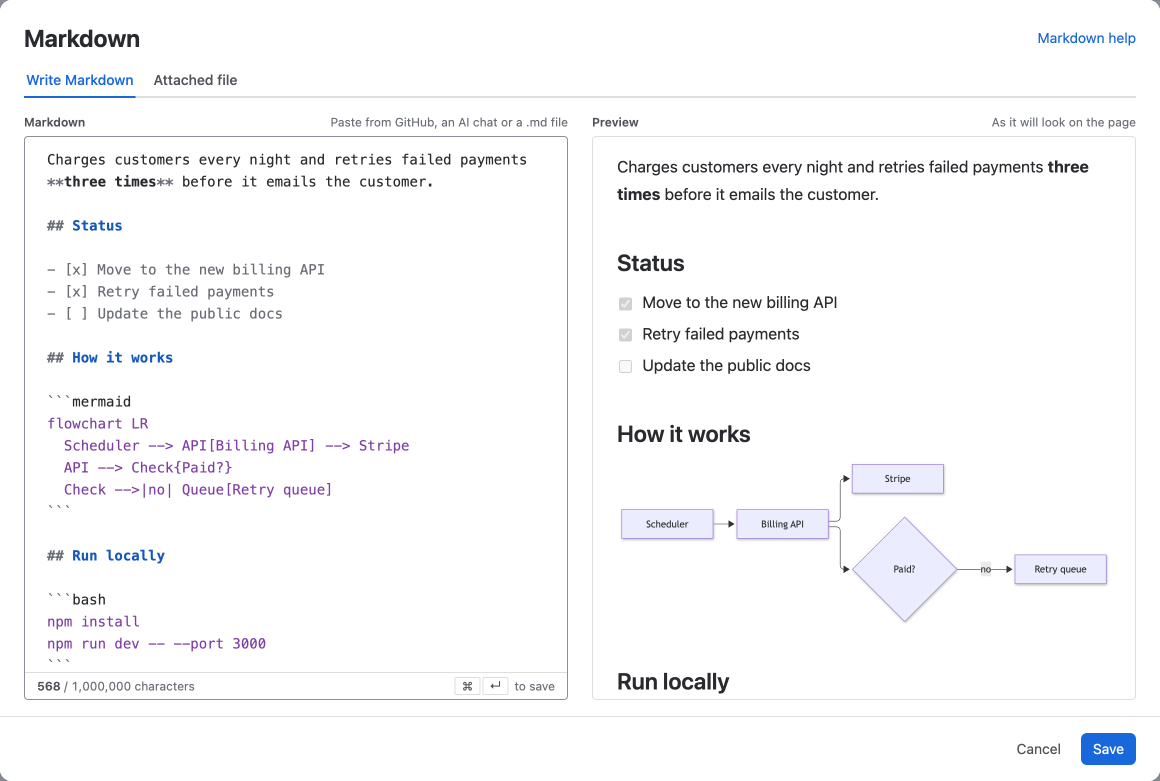
/markdownand choose Markdown. - The Markdown editor opens. On the Write Markdown tab, type or paste your Markdown on the left.
- The preview on the right shows it as it will look on the page.
- Choose Insert (or press ⌘ Enter on a Mac, Ctrl Enter on Windows).
- Publish the page as usual.
The macro grows to fit its content, so there is no height to set. A long document shows in full on the page.
Edit Markdown
- Open the page for editing.
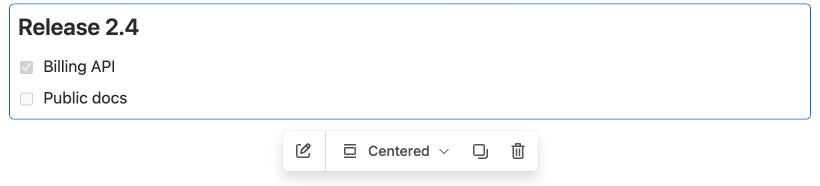
- Select the macro. A small toolbar appears under it.
- Choose Edit (the pencil icon), change the Markdown and choose Save.
The editor
- Code box. Markdown is highlighted as you type: headings, links, code and list markers each have their own colour.
- Preview. Uses the same renderer as the page, Mermaid diagrams included.
- Character counter. Shows how much of the size limit you’ve used. It turns yellow at 90%.
- Markdown help. The link at the top right opens this documentation.
Size limit
One macro holds up to 1,000,000 characters — about 300 pages of text. Above that, the editor shows how much to shorten and won’t save. Very long documents work better split across several Markdown macros, each under its own heading.
For text in non-Latin scripts, such as Cyrillic or Chinese, the limit can be reached sooner, because the app also limits the stored size to 1.5 MB.
Tips
- Paste as is. Markdown copied from GitHub, an AI chat or a code editor works without changes.
- Links open in a new tab. Links to headings in the same Markdown, like
[Setup](#setup), scroll to the heading. - Several macros on one page work fine — for example one per section of a long document.