 Cheese Wheels Apps
 LaTeX
LaTeX docs
Edit a formula
Change a formula, its size or its alignment at any time.
Open a formula for editing
Open the page for editing.
Select the formula. A small toolbar appears under it.
Choose Edit (the pencil icon).
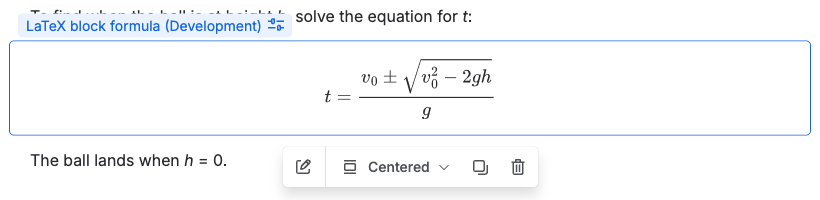
Change the formula, then choose Save, or press Ctrl Enter (⌘ Enter on a Mac).
Update the page.
To remove a formula, select it and choose Remove (the bin icon) in the same toolbar.
What the editor does for you
| Feature | How it works |
|---|---|
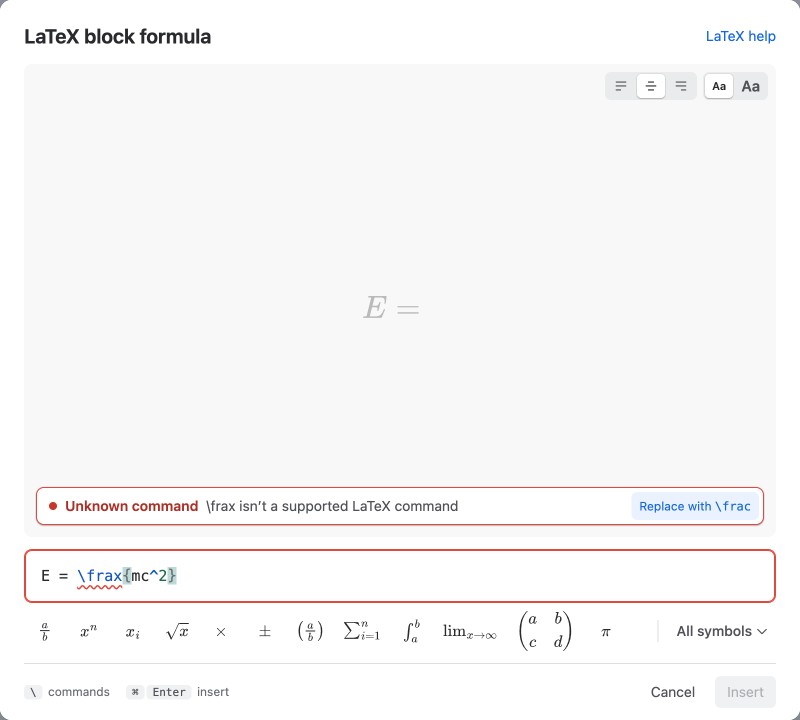
| Live preview | The formula renders above the code box as you type. While you’re halfway through a command, the last valid formula stays visible, dimmed. |
| Autocomplete | Type \ and the start of a command — such as \fr — to see matching commands with a preview. Press Tab or Enter to insert one. |
| Brackets | Typing {, ( or [ adds the closing bracket. Matching brackets are highlighted. |
| Syntax highlighting | Commands, numbers and brackets are coloured so the structure is easy to read. |
| Error messages | If a formula can’t render, a short message explains why — for example Missing } or Unknown command. Insert and Save stay disabled until it’s fixed. |
| Quick fixes | For a mistyped command, the error offers a fix, such as Replace with \frac. |
| Size and alignment | The buttons in the preview set the size (normal or large) and, for block formulas, the alignment. |
Keyboard shortcuts
| Keys | Action |
|---|---|
| \ | Start a command and open autocomplete |
| Tab or Enter | Accept the highlighted autocomplete suggestion |
| Ctrl Enter / ⌘ Enter | Insert or save the formula |
| Esc | Close the autocomplete list |
LaTeX help
The LaTeX help link at the top of the editor opens this documentation. For the commands you can use, see LaTeX basics.